Showing posts with label controller. Show all posts

Monday, August 28, 2023

Factory reset your Unifi AP or switch and adopt them to your new Unifi Controller setup with the wrong network IP

I am reinstalling my Unifi Controller on Docker and need to re-adopt my Unifi AP devices. There are several ways to do this:

  1. Hard reset your device with a staple
  2. SSH into the device and reset via a command
  3. Forget the device in the Unifi Controller (was never an option for me, but seems possible for others)

With option 1, I ran into the issue that my network is different from the default one that a Unifi AP resets to (default IP = 192.168.1.20) and I wanted a way to change that back to the fixed IP address it had before. Thanks to this article for some help. Later on, it turned out there was even a more convenient way for me to do this, see below.

  1. Reset your Unifi AP device with a staple by pressing the Reset button. When it concerns a switch, follow the special procedure which requires to unplug the power cord and UTP cables, see more information here.
  2. Provide a laptop where you can change the Ethernet IP to a fixed on e.g. 192.168.1.2 (has to be in the 192.168.1.x/24 range) and connect the laptop with your Unifi AP or switch directly through an UTP cable 
  3. SSH into the Unifi AP or switch (ssh -l ubnt 192.168.1.20) with default password ubnt
  4. Change the config file:
  5. vi /etc/udhcpc/udhcpc
    From:
    UDHCPC_FALLBACK_IP="192.168.1.20"UDHCPC_FALLBACK_NETMASK="255.255.255.0"
    Into:
    UDHCPC_FALLBACK_IP="NEW_IP"UDHCPC_FALLBACK_NETMASK="255.255.255.0"
  6. Save your file and wait
A couple of seconds later, the Unifi AP or switch will get a new IP address and you can disconnect the direct UTP cable and hook up the AP or switch again to your normal network. It should be accessible now through the Controller UI and you can adopt it again.

Unfortunately, this did not work 100% for one of my switches, so I searched for a better way.

Now, option 2 is even better and didn't require me to unplug the device and work with 2 UTP cables.
  1. Check in the Unifi Controller for the listed devices that still need to be adopted


  2. SSH into the device with you known (old) admin account and password
  3. Reset the device configuration
    set-default


  4. Wait for the device to come up again in the Unifi Controller and check it's IP address that should have changed now. Select the device and click on 'Adopt'.
  5. SSH into the device with this IP address and the default login: ubnt/ubnt.
  6. Perform an adoption via:
    ping -c 4 unifi.yourdomain.com
    mca-cli
    set-inform http://unifi.yourdomain.com:8080/inform
  7. Check in the Unifi Controller but normally it should start adopting or updating its configuration straight away!

Tuesday, February 6, 2018

Unifi controller docker image not working on Synology until...

I wanted to install a docker image into a running container using the fine work done by Jacob Alberty. And follow these steps. Unfortunately, I could not access the website on https://yournasip:8443. I was pulling my hairs out as I could see that the container was running, TCP IP4/6 ports were open, yet I could not access any website. I double checked that my firewall on the NAS was not blocking traffic, but that was not the case. I therefore reverted to starting the container from the command line. (Please note that I ommited the --init flag, as this flag (from 1.13 onwards) is not yet supported on the Docker version on my Synology (1.11.2).)

docker run --rm -p 3478:3478/udp -p 6789:6789/udp -p 8080:8080 \
-p 8443:8443 -p 8843:8843 -p 8880:8880 -p 10001:10001/udp -e TZ='Europe/Paris' \
-v /volume1/docker/unifi:/unifi --name unifi jacobalberty/unifi:stable

And tadaaa! Suddenly, I was able to access the Unifi Controller again. But when I stopped the command on the command line, the container would stop. So I needed a little trick.

  1. Start the docker container from the command line through an SSH session in the terminal.
  2. Verify that you can access the Unifi Controller
  3. Go to DSM and login, start the Docker app
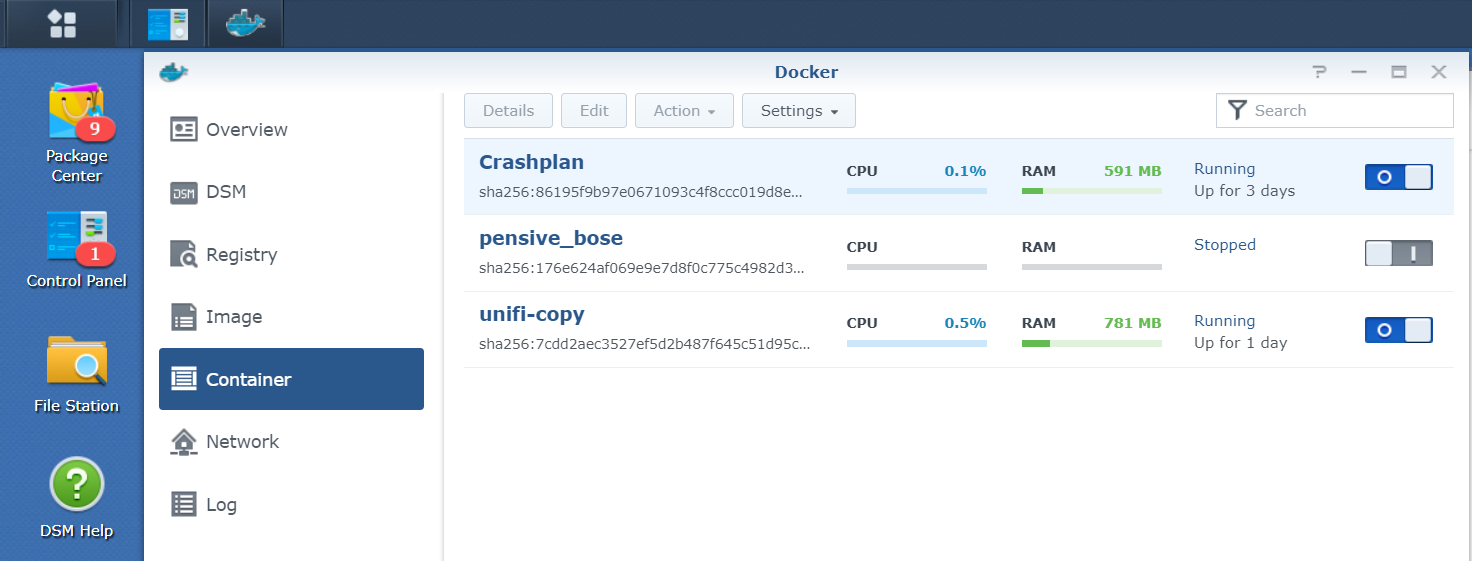
  4. Click on 'Container' and identify the unifi container. Right-click it, go to Settings and then Duplicate Settings. A copy container will be made, named unifi-copy.
  5. Kill the docker command from the terminal. But now you have a second copy.
  6. Tweak and configure the copy container as you like and start it from the DSM.

Alternatively, you could also use the -d option as per documentation.
--detach , -dRun container in background and print container ID

Tuesday, February 28, 2017

Installing Unifi Controller as a Docker container on Synology


Having Ubiquiti UniFi access points in your house is a great way to serve a meshed Wifi network. With a Synology NAS and DSM6, it's very easy now to run the UniFi Controller in a Docker container. Link to the docker image: https://hub.docker.com/r/jacobalberty/unifi/
These tutorials will greatly help you with that: miketabor.com and kapsi.fi. There's a few tweaks I had to make:
Change the container config and add UDP port 10001:10001
Make sure your firewall rules on your NAS are properly adapted (take the 10001/udp into account as well)

If you have deployed a UniFi Controller on a different system/instance before, make sure that you adopt the device on your new Controller by doing the following steps:
SSH login to your access point (access_point_ip:22) with credentials of the previous controller (e.g. administrator:yoursecretpass)
Now execute the following commands:
#mca-cli
#set-inform synology_nas_ip:8080/inform

Now you should see your device into your new Controller instance and you're good to go!