Showing posts with label dsm. Show all posts

Thursday, September 21, 2023

Watchtower not working on Synology DSM 6.0.x as a Docker container

When installing the standard Watchtower container onto DSM 6.0 with Docker, I ran into 2 issues which caused the container not to run and constantly restart itself (see container logs for the error messages):

  1. Cannot connect to the Docker daemon at unix:///var/run/docker.sock. Is the docker daemon running?
  2. Error response from daemon: client is newer than server (client API version: 1.24, server API version: 1.23

Both issues have a solution. First being that an older docker image has to be used, second being that DSM UI somewhere filters out a file mapping when creating the container.

Fix for issue 1: Create a symlink

sudo ln -s /var/run/docker.sock /volume1/docker/docker.sock

Fix for issue 2: Create a new docker container

sudo docker run -d --name watchtower-new -v /volume1/docker/docker.sock:/var/run/docker.sock centurylink/watchtower --interval 82800 --cleanup

Thanks to these links for finding a solution

Friday, August 2, 2019

Renew your wildcard certificate on your DSM Webstation and OpenVPN server

Are you having a wildcard (*.yourdomain.com) SSL certificate that is expiring and needs a renewal? Below are the steps to take to renew it on a Synlogy DSM. I also use the certificate for the OpenVPN server on the DSM. So I need to update it twice.

Convention:

  • Certificate: server.crt
  • Private key: server.key
  • Intermediate: ca_bundle.crt
  • Root: ca.crt


Receive a new wildcard certificate

  • Login in DSM https://ip:5001
  • SSH into the DSM
  • cd /usr/syno/etc/packages/VPNCenter/openvpn/keys
  • copy the ca_bundle.crt file
  • In the DSM: Control Panel > Security > Certificate
  • Click on CSR, then renew certificate
  • Select the Country and download CSR and the private key.
  • Go to ssl2buy.com to buy a new wildcard certificate from alphassl.com
  • Enter the CSR (generated by your DSM) and select approval method admin@yourdomain.com
  • Go to your webmail and login with the admin@yourdomain.com account to check for the email to approve your new purchase
  • Click on the approval email request to issue out the certificate (you get an email with the certificate from ssl2buy)
  • Add a new certificate by entering the server.key, server.crt and ca_bundle.crt files in the wizard
  • Click on Edit to set the new certificate as the Default one, then remove the old (inactive) one. The webserver should restart itself now with the new certificate
Tip: The intermediate certificate (in base64 format) from AlphaSSL can be downloaded here


Update the certificates for the OpenVPN server

  • SSH into the DSM and make yourself root
  • sudo -i
    cd /usr/syno/etc/packages/VPNCenter/openvpn/keys
  • Make a new folder for the last time you created/renewed your certificate under "history" directory. Move the (old) certificates there to as a backup.
  • mkdir history/YYYY-MM-DD
    mv server.* history/YYYY-MM-DD
    cp -rp ca* history/YYYY-MM-DD
  • Add the new private key, certificate and intermediate by doing vi server.key ... Do this for the 2 server files mentioned under Convention.
  • Make the files owner readable only
  • chmod 400 server*
    chmod 400 ca*
  • Restart the OpenVPN server
  • /var/packages/VPNCenter/target/scripts/openvpn.sh restart


And you should be good to go for another year...

Sunday, February 10, 2019

Unifi Controller: setup a new instance and restore a backup

I tried to upgrade my Docker container with the Unifi Controller (UC) on my Synology. Unfortunately, upgrading from 5.6 to 5.10 is actually not supported and I ended up with a corrupted database. I therefore, created a new container from the latest stable image (5.10.12) and had a few hickups in between.

  1. I did not have a good backup of the MongoDB for version 5.6
  2. Always have good backups.
  3. I got I/O exception (java.net.ConnectException) caught when processing request...
  4. It turned out that I had already my SSL certificate placed inside the /unifi/cert folder, which caused this error. The /unifi data, logs and cert folder must thus be empty when you first start the container. Later on, you can update your certificates. Don't forget to restart the container when you do.
  5. The container (version 5.10) crashed when I restored a UC autobackup for version 5.6
  6. A restart and some patience for the system to come back on, helped this. A re-adoption of the devices was needed. I also upgraded the firmware of all my devices.

Synology: ports already in use error message in DSM when creating a new Docker container

If you happen to create a new container, for a same service (e.g. new Unifi Controller with latest version), you could happen to run into the issue where the same ports cannot be used again, due to a check that DSM is performing. It could also be the case that the config file for this does not get deleted. The solution is to manually move or delete the file for the time being.


  1. Start looking for the port that is reported as already in use (in my case it was 10001)
  2. grep -Rl "10001" /usr | grep docker
  3. Go to the folder where the port reservations for services are kept
  4. cd /usr/local/etc/services.d/
    Output:
    root@server:/usr/local/etc/services.d# ls -l
    total 36
    -rw-r--r-- 1 root root 395 Mar  4  2017 AudioStation.sc
    -rw-r--r-- 1 root root  98 Dec 13 08:52 CloudStation.sc
    -rw-r--r-- 1 root root 109 Dec 30 12:48 docker_trusting_boyd.sc
    -rw-r--r-- 1 root root 109 Feb 08 12:48 docker_unifi.sc
    -rw-r--r-- 1 root root 178 Mar  4  2017 iTunesServer.sc
    -rw-r--r-- 1 root root 688 Feb  9 14:53 MailServer.sc
    -rw-r--r-- 1 root root 105 Apr 18  2017 ProxyServer.sc
    -rwxr-xr-x 1 root root 250 Jan  1  2017 SurveillanceStation.sc
    -rw-r--r-- 1 root root 426 Mar 11  2018 synovpn_port
    -rw-r--r-- 1 root root 262 Apr 14  2017 VideoStation.sc
  5. Move the corresponding file or delete it

Tuesday, February 6, 2018

Unifi controller docker image not working on Synology until...

I wanted to install a docker image into a running container using the fine work done by Jacob Alberty. And follow these steps. Unfortunately, I could not access the website on https://yournasip:8443. I was pulling my hairs out as I could see that the container was running, TCP IP4/6 ports were open, yet I could not access any website. I double checked that my firewall on the NAS was not blocking traffic, but that was not the case. I therefore reverted to starting the container from the command line. (Please note that I ommited the --init flag, as this flag (from 1.13 onwards) is not yet supported on the Docker version on my Synology (1.11.2).)

docker run --rm -p 3478:3478/udp -p 6789:6789/udp -p 8080:8080 \
-p 8443:8443 -p 8843:8843 -p 8880:8880 -p 10001:10001/udp -e TZ='Europe/Paris' \
-v /volume1/docker/unifi:/unifi --name unifi jacobalberty/unifi:stable

And tadaaa! Suddenly, I was able to access the Unifi Controller again. But when I stopped the command on the command line, the container would stop. So I needed a little trick.

  1. Start the docker container from the command line through an SSH session in the terminal.
  2. Verify that you can access the Unifi Controller
  3. Go to DSM and login, start the Docker app
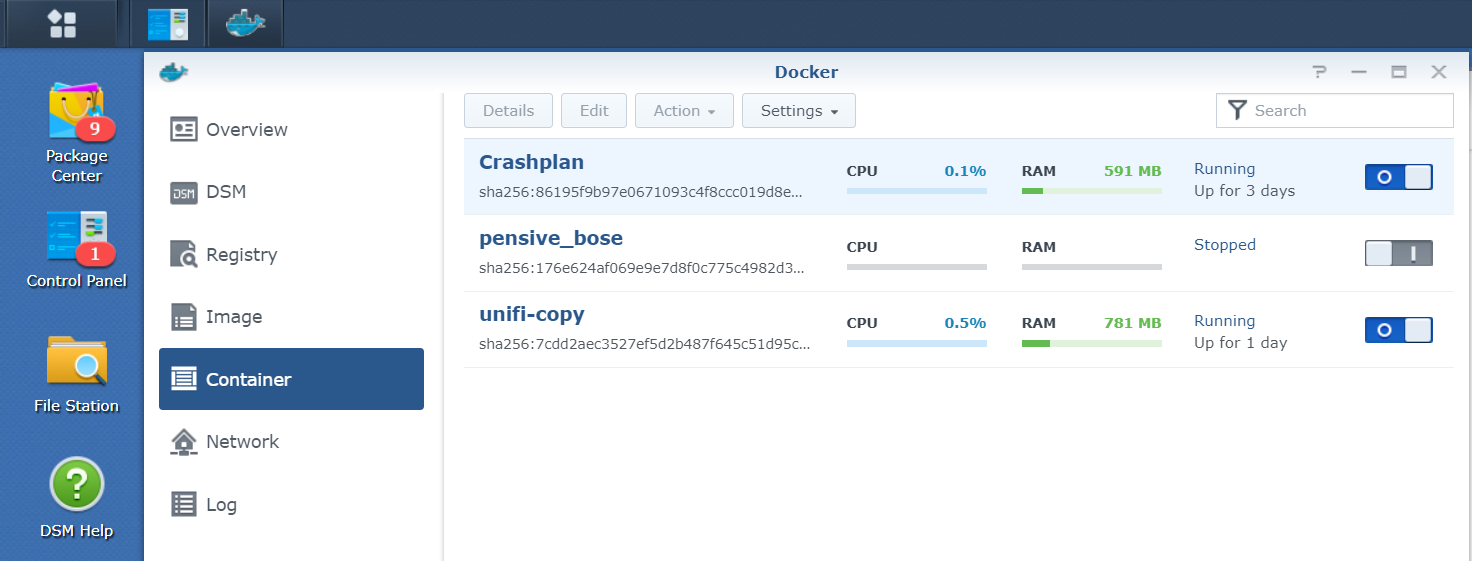
  4. Click on 'Container' and identify the unifi container. Right-click it, go to Settings and then Duplicate Settings. A copy container will be made, named unifi-copy.
  5. Kill the docker command from the terminal. But now you have a second copy.
  6. Tweak and configure the copy container as you like and start it from the DSM.

Alternatively, you could also use the -d option as per documentation.
--detach , -dRun container in background and print container ID

Sunday, February 26, 2017

Installing Entware onto Synology DSM6

You might run into the situation where you need to install an external package onto your DSM6. Entware is the way to go as a ton of packages are available. The steps to do are well listed here. Make sure you're root (sudo su -) before executing them.

Usage as per below:

# opkg update
Downloading http://pkg.entware.net/binaries/mipsel/Packages.gz.
Updated list of available packages in /opt/var/opkg-lists/entware-ng.

# opkg list transmission*
transmission-cli - 2.84-4 - CLI utilities for transmission.
transmission-daemon - 2.84-4 - Transmission is a simple BitTorrent client.
It features a very simple, intuitive interface
on top on an efficient, cross-platform back-end.
This package contains the daemon itself.
transmission-remote - 2.84-4 - CLI remote interface for transmission.
transmission-web - 2.84-4 - Webinterface resources for transmission.

# opkg install transmission-web
Installing transmission-web (2.84-4) to root...
Downloading http://pkg.entware.net/binaries/mipsel/transmission-web_2.84-4_mipselsf.ipk.
Installing transmission-daemon (2.84-4) to root...
Downloading http://pkg.entware.net/binaries/mipsel/transmission-daemon_2.84-4_mipselsf.ipk.
...