Showing posts with label install. Show all posts

Tuesday, February 6, 2018

Installing (and updating) Unifi Controller as a docker image on your Synology NAS

Prerequisites


  • Make sure you log in to DSM on your NAS as an admin user.
  • Docker must be installed on your NAS. If It isn’t, go to "Package Center", select "Utilities" and look for "Docker" under the "Third-party" heading and add the package to your NAS (if Docker is not available for your NAS, this HOWTO is not for you).

Installation

  1. In the (DSM) Main menu, choose "Docker".
  2. Click on "Registry" and search for "unifi". Select the "jacobalberty/unifi" entry and click "Download". Select the "stable" branch.
  3. When the image is downloaded, it’ll show up under "Image", on this page select it and click "Launch". Note that it can take a while to finish the download, DSM will show a "system event" notification when download is completed.
  4. Give the controller a container name you like (or accept the default) and click on "Advanced Settings".
  5. In the first tab "General settings", check "Enable auto-restart"
  6. In the tab "Volume", click "Add Folder"
  7. Select "docker", click on "Create folder", name it "unifi" and click OK. Select it and click "Select"
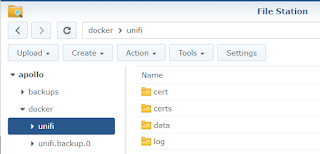
  8. Under "mount path", enter "/unifi". Later on, you will see that subfolders data and log will be created. A subfolder folder cert can be manually created to host your SSL certificate.

  9. In the tab "Network", check "Use the same network as Docker Host". Click "Apply" and click on "Next" and after that on "Apply".
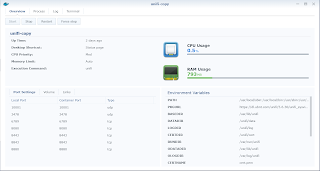
  10. Start your container and check the settings by selecting the running container and clicking on "Details".

Updating

  1. In the DSM Main menu, choose "Docker".
  2. Click on "Registry" and search for "unifi". Select the "jacobalberty/unifi" image and click "Download". Select the branch you installed before ("stable" is the branch you should choose). Wait until the download completes (DSM will show a "system event" notification when download has completed)
  3. Click on "Container", select the UniFi Controller container and subsequently:
    1. Stop the container (flip the on-off switch you see) and wait till the status of the container changes to "Stopped".
    2. Click the "Action" button and select "Clear".
    3. Start the container (flip the on-off switch you see) and wait till the status of the container changes to "Running".
That’s it! The new version of Unifi Controller should be running now.

Sunday, February 26, 2017

Installing Entware onto Synology DSM6

You might run into the situation where you need to install an external package onto your DSM6. Entware is the way to go as a ton of packages are available. The steps to do are well listed here. Make sure you're root (sudo su -) before executing them.

Usage as per below:

# opkg update
Downloading http://pkg.entware.net/binaries/mipsel/Packages.gz.
Updated list of available packages in /opt/var/opkg-lists/entware-ng.

# opkg list transmission*
transmission-cli - 2.84-4 - CLI utilities for transmission.
transmission-daemon - 2.84-4 - Transmission is a simple BitTorrent client.
It features a very simple, intuitive interface
on top on an efficient, cross-platform back-end.
This package contains the daemon itself.
transmission-remote - 2.84-4 - CLI remote interface for transmission.
transmission-web - 2.84-4 - Webinterface resources for transmission.

# opkg install transmission-web
Installing transmission-web (2.84-4) to root...
Downloading http://pkg.entware.net/binaries/mipsel/transmission-web_2.84-4_mipselsf.ipk.
Installing transmission-daemon (2.84-4) to root...
Downloading http://pkg.entware.net/binaries/mipsel/transmission-daemon_2.84-4_mipselsf.ipk.
...

Thursday, December 1, 2016

Install Louie for Python3

I needed Louie for a Python3 script, but it is not available through apt-get. To install directly from the github, just use the following command which makes use of pip3.

pi@raspberrypi:~ $ sudo pip3 install git+git://github.com/11craft/louie.git

In order to check for the installed modules in your python3 installation:
>>> import pip
>>> installed_packages = pip.get_installed_distributions()
>>> installed_packages_list = sorted(["%s==%s" % (i.key, i.version)
...      for i in installed_packages])
>>> print(installed_packages_list)
['babel==2.3.4', 'flask-babel==0.9', 'flask-socketio==2.8.1', 'flask-themes==0.1.3', 'flask-wtf==0.9.5', 'flask==0.10.1', 'gevent-socketio==0.3.6', 'gevent-websocket==0.9.5', 'gevent==1.1.1', 'greenlet==0.4.10', 'itsdangerous==0.24', 'libopenzwave==0.3.1', 'louie==1.2a1dev', 'nose==1.3.7', 'openzwave==0.3.1', 'pydispatcher==2.0.5', 'pyozwman==0.3.1', 'pyozwweb==0.3.1', 'python-engineio==1.1.0', 'python-socketio==1.6.1', 'pytz==2016.7', 'pyyaml==3.12', 'six==1.10.0', 'speaklater==1.3', 'urwid==1.3.1', 'virtualenv==15.1.0', 'webob==1.7.0rc1', 'werkzeug==0.11.11', 'wtforms==1.0.5']