- Do the physical installation, plugin the network and HDMI cables (except the power cable of course) and screw your RPi into a cover or box.
- Prepare SD card on Mac with Raspberry Pi Imager
- Plugin the SD card into your RPi and now also plugin the power cable. Boot your RPi for the first time now. Create a user with password for using later. (e.g. user:pi, password:raspberry)
- When booted, you'll be provided with a prompt to login for the first time. Mind the QWERTY keyboard layout.
- Run the setup tool
sudo raspi-config
- Configure the setup tool
- Set the hostname (1 System Options > S4 Hostname)
- Expand Filesystem (6 Advanced Options > A1 Expand file system)
- Change Timezone, set Keyboard Layout (if needed) and change Wifi Country (5 Localization Options > L2 Change Timezone, L3 Change Keyboard Layout, L4 Change Wi-fi Country)
- Enable SSH (3 Interfacing Options > I2 SSH)
- Press 'Finish' and Reboot
- After reboot, login again via SSH and change your user password:
passwd - Generate a SSH key-gen pair, which is more robust than the default one.
ssh-keygen -o -a 100 -t ed25519
- Change the root password
sudo passwd root
- Set the ETH0 IP address to a fixed IP. I hardly ever use the Wifi module in a Raspberry Pi
sudo vi /etc/network/interfaces
Add at the end of the file the following:
# Added by user on 2023-XX-XX
auto eth0
iface eth0 inet static
        address 192.168.0.240/24
        network 192.168.0.0
        broadcast 192.168.0.255
        gateway 192.168.0.1
        dns-nameservers 192.168.0.1 8.8.8.8
# End of Addition
sudo systemctl restart networking.service
And test withip add show
Reboot your RPi again (or do it later if you plan to reboot anyway) - Check for updates & upgrades for Bullseye, but first become root. Don't forget to reboot if kernel patches were installed.
sudo -i
apt-get update -y && apt-get upgrade -y
- Fix a common issue with Syslog flooding your logs
sudo sed -i '/# The named pipe \/dev\/xconsole/,$d' /etc/rsyslog.conf
sudo service rsyslog restart
- Alternatively, you could also install Syslog-NG
sudo apt-get install -y syslog-ng
- Install Git
sudo apt-get install -y git dirmngr
- Install Log2Ram as this will allow us to keep logs in memory and reduce the SD card writing significantly. From time to time, the logs are still made persistent to disk.
cd /home/pi
git clone https://github.com/azlux/log2ram.git
cd log2ram
chmod +x install.sh
sudo ./install.sh
Change the log size value to 128M
sudo vi /etc/log2ram.conf
Reboot - Install Sendmail and configure to work with a local mail relay server, or alternatively Gmail.
sudo apt-get install -y sendmail mailutils sendmail-bin
sudo mkdir -m 700 /etc/mail/authinfo/
sudo cd /etc/mail/authinfo/
Create a Sendmail authentication file:
sudo vi sendmail-auth
And paste the following info:
AuthInfo: "U:root" "I:YOUR LOGIN" "P:YOUR PASSWORD"
Save and exit vi. Next do the makemap:
sudo makemap hash sendmail-auth < sendmail-auth
sudo chmod 400 sendmail-auth
Change the Sendmail configuration now
sudo vi /etc/mail/sendmail.mc
Add the following below right above first "MAILER_DEFINITIONS" line:
# Added by yourname on 2018-XX-XX
define(`SMART_HOST',`[192.168.Y.XX]')dnl
define(`RELAY_MAILER_ARGS', `TCP $h 587')dnl
define(`ESMTP_MAILER_ARGS', `TCP $h 587')dnl
define(`confAUTH_OPTIONS', `A p')dnl
TRUST_AUTH_MECH(`EXTERNAL DIGEST-MD5 CRAM-MD5 LOGIN PLAIN')dnl
define(`confAUTH_MECHANISMS', `EXTERNAL GSSAPI DIGEST-MD5 CRAM-MD5 LOGIN PLAIN')dnl
FEATURE(`authinfo',`hash -o /etc/mail/authinfo/sendmail-auth.db')dnl
# End of Addition
Apply the changes to the configuration and restart Sendmail:
sudo make -C /etc/mail
sudo /etc/init.d/sendmail reload
Test if you can send an email to yourself:
echo "Just testing my Sendmail email relay" | mail -s "Sendmail email relay" you@here.com
- Setup NTP sync
sudo apt-get install -y ntp ntpdate
sudo vi /etc/ntp.conf
And replace the XX with your country code
0.XX.pool.ntp.org
sudo /etc/init.d/ntp stop
And query to see NTP being in sync
sudo ntpd -gq
sudo /etc/init.d/ntp start
sudo ntpd -pn
- Setup SNMP
sudo apt-get install snmp snmpd
sudo vi /etc/snmp/snmpd.conf
And put the following configuration lines
agentAddress udp:161
rocommunity public 192.168.X.0/24
Restart your SNMP daemon
sudo /etc/init.d/snmpd restart
And test on your local machine
snmpwalk -Os -c public -v 1 localhost
- Setup NFS backup share, install a backup tool, rsnapshot and configure
Fix rpcbind issue (Make yourself root first)su - cat >/etc/systemd/system/nfs-common.service <<\EOF [Unit] Description=NFS Common daemons Wants=remote-fs-pre.target DefaultDependencies=no [Service] Type=oneshot RemainAfterExit=yes ExecStart=/etc/init.d/nfs-common start ExecStop=/etc/init.d/nfs-common stop [Install] WantedBy=sysinit.target EOF
cat >/etc/systemd/system/rpcbind.service <<\EOF
[Unit]
Description=RPC bind portmap service
After=systemd-tmpfiles-setup.service
Wants=remote-fs-pre.target
Before=remote-fs-pre.target
DefaultDependencies=no

[Service]
ExecStart=/sbin/rpcbind -f -w
KillMode=process
Restart=on-failure

[Install]
WantedBy=sysinit.target
Alias=portmap
EOF
cat >/etc/tmpfiles.d/rpcbind.conf <<\EOF
#Type Path        Mode UID  GID  Age Argument
d     /run/rpcbind 0755 root root - -
f     /run/rpcbind/rpcbind.xdr 0600 root root - -
f     /run/rpcbind/portmap.xdr 0600 root root - -
EOF

systemctl enable rpcbind.service
systemctl enable nfs-common
Install raspiBackup (from this website)sudo mkdir -p /backup
Avoid accidental file storage, when folder is not mounted
And put the following configuration linessudo chattr +i /backup sudo vi /etc/fstab
And addserver.yourdomain.com:/volume1/backups/host.yourdomain.com/backup nfs rsize=8912,wsize=8912,timeo=14 0 0 sudo mount /backup
Now install the raspiBackup toolcurl -s https://raw.githubusercontent.com/framps/raspiBackup/master/installation/install.sh | sudo bash
Go through the configuration tool, later on you can go back to it via: raspiBackupInstallUI.sh
-Backup versions: smart strategy-Backup to tar-No compression-Backup mode standard-Email notification set
Uncomment the crontab (backup will run every Sunday at 5am):sudo vi /etc/cron.d/raspiBackup
And finally testsudo raspiBackup
Generate an SSH keypair for easy login
ssh-keygen
ssh-copy-id -p 22 admin@server.yourdomain.com Log into your server, make yourself root and copy the public key into the raspberry
cat /root/.ssh/id_rsa.pub | ssh user@hhost.yourdomain.com "mkdir -p ~/.ssh && cat >> ~/.ssh/authorized_keys"
Test if it's working by using:ssh user@host.yourdomain.com
Setup unattended upgrade based on this tutorial
sudo apt update
sudo apt install unattended-upgrades Configure unattended upgrades and uncomment:
sudo vi /etc/apt/apt.conf.d/50unattended-upgrades "origin=Debian,codename=${distro_codename}-updates"; "origin=Debian,codename=${distro_codename}-proposed-updates"; "origin=Debian,codename=${distro_codename},label=Debian"; "origin=Debian,codename=${distro_codename},label=Debian-Security"; "origin=Debian,codename=${distro_codename}-security,label=Debian-Security";And uncomment:Unattended-Upgrade::Remove-Unused-Dependencies "false";
Now enable Automatic Updates (and press Yes)sudo dpkg-reconfigure --priority=low unattended-upgrades
To view the unattended upgrades:
sudo systemctl status unattended-upgrades.service
-
Showing posts with label installation. Show all posts
Showing posts with label installation. Show all posts
Monday, September 25, 2023
Advanced installation of a Raspberry Pi with Raspbian Bullseye
When installing a Raspberry Pi, I have a checklist of steps I take each time to ensure my Raspberry Pi's are (mostly) configured in the same way. They have the same way to backup their data, use the same user configurations (ntp, syslog, sendmail...) and have the same security provisioning. We will also introduce logs into memory with Log2Ram, to avoid too much SD card writing/wearing, which will eventually break your RPi. Feel free to comment on any step that is documented here. Some steps might be optional or unnecessary in your case.

Tuesday, February 6, 2018
Installing (and updating) Unifi Controller as a docker image on your Synology NAS
Prerequisites
- Make sure you log in to DSM on your NAS as an admin user.
- Docker must be installed on your NAS. If It isn’t, go to "Package Center", select "Utilities" and look for "Docker" under the "Third-party" heading and add the package to your NAS (if Docker is not available for your NAS, this HOWTO is not for you).
Installation
- In the (DSM) Main menu, choose "Docker".
- Click on "Registry" and search for "unifi". Select the "jacobalberty/unifi" entry and click "Download". Select the "stable" branch.
- When the image is downloaded, it’ll show up under "Image", on this page select it and click "Launch". Note that it can take a while to finish the download, DSM will show a "system event" notification when download is completed.
- Give the controller a container name you like (or accept the default) and click on "Advanced Settings".
- In the first tab "General settings", check "Enable auto-restart"
- In the tab "Volume", click "Add Folder"
- Select "docker", click on "Create folder", name it "unifi" and click OK. Select it and click "Select"
- Under "mount path", enter "/unifi". Later on, you will see that subfolders data and log will be created. A subfolder folder cert can be manually created to host your SSL certificate.
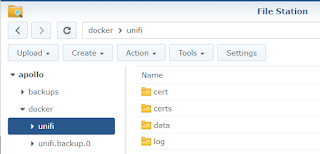
- In the tab "Network", check "Use the same network as Docker Host". Click "Apply" and click on "Next" and after that on "Apply".
- Start your container and check the settings by selecting the running container and clicking on "Details".
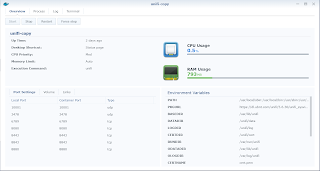


Updating
- In the DSM Main menu, choose "Docker".
- Click on "Registry" and search for "unifi". Select the "jacobalberty/unifi" image and click "Download". Select the branch you installed before ("stable" is the branch you should choose). Wait until the download completes (DSM will show a "system event" notification when download has completed)
- Click on "Container", select the UniFi Controller container and subsequently:
- Stop the container (flip the on-off switch you see) and wait till the status of the container changes to "Stopped".
- Click the "Action" button and select "Clear".
- Start the container (flip the on-off switch you see) and wait till the status of the container changes to "Running".
Subscribe to:
Posts (Atom)